
Mountainpanoramas is the website for you, if you urgently need the mountain feeling but cannot haunt the mountains yourself. Mountainpanoramas shall give you that feeling wherever you are »like being there yourself«. Move around in full screen mode and explore or inspect the mountains from your desk.
I, Thomas Worbs started panoramic photography in 1999 and collected a lot of high resolution panoramas. Due to limited bandwidth and poor player technology it was not possible to publish them adequately on the internet. In 2010 technology (Adobe Flash) and bandwidth were available and I found some time. I brought my vision with a few of my ideas live in a first version of Mountainpanorama.
Very quickly I found other passioned climbers and panoramic photographers supporting the idea and using Mountainpanoramas as their platform. The Mountainpanoramas photographer community was born.
Thanks to all friends who supported and motivated me to build this website, especially to Roland Hoffmann contributing beautiful panoramas as the first photographer, to Markus Glatter who helped me with PHP programming, to Dirk Becker who posted a lot of panoramas taken at stunning places while the site was not live yet (now he is the contributer with most panoramic images), and to my family for the patience and support during launch of this project and the subsequent redesigns.
This Website is free but operation of Mountainpanoramas is not free for me. Donations are highly appreciated to cover a bit of the yearly costs. Donate button (via Paypal) on the right hand side within this page. Thanks in advance for your help.
Giving Mountainpanoramas a link in your website is very much appreciated. When you link please stick to the rules laid down below. Thanks.
Links to this WEBSITE are absolutely welcome, provided the website referencing my WEBSITE does not promote or contain libelous or defamatory materials, does not promote discrimination, or employ discriminatory practices, based on race, sex, religion, nationality, disability, sexual orientation, or age, does not promote or undertake illegal activities and does not violate intellectual property or other third party rights or any other applicable law. Notification of link-setting via email is appreciated. Further information regarding linking is given in my Terms of Use.
All you need is a "modern" browser. Mountainpanoramas works best with current versions of Firefox, Chrome and Safari. Also most of the mobile browsers are supported. Mountainpanoramas runs on Microsoft Edge, but not any more on Internet Explorer.
Java Script must definitely be enabled.
Mountainpanoramas is free and free of ads. If you like it, a small support will help a lot to fund operation and new developments.
Thanks!

When clicking the button above you are transferred to PayPal where the following Privacy Policy and Legal Terms apply.
 Many of the panoramas are about 200 Megapixel allowing
zoom-ins to the finest details. Mountainpanoramas's technology supports those high
resolutions at minimum download time.
Many of the panoramas are about 200 Megapixel allowing
zoom-ins to the finest details. Mountainpanoramas's technology supports those high
resolutions at minimum download time.
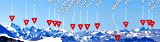 All Panoramas are labeled with summit names and other
geographical information.
All Panoramas are labeled with summit names and other
geographical information.
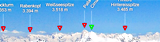 Search for the green labels. There is the next panorama.
Click on the label for Panoramic Hiking to this point. In this way you can cross complete
mountain regions.
Search for the green labels. There is the next panorama.
Click on the label for Panoramic Hiking to this point. In this way you can cross complete
mountain regions.
 The panoramas are correctly aligned regarding
point of the compass. How to display the integrated compass
is explained on the Little User Handbook at the left side of this page.
The panoramas are correctly aligned regarding
point of the compass. How to display the integrated compass
is explained on the Little User Handbook at the left side of this page.
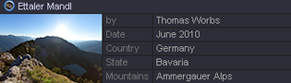 Clicking on a panorama thumbnail
box looking like the one shown left opens a browser window with the panorama.
Clicking on a panorama thumbnail
box looking like the one shown left opens a browser window with the panorama.
You can find those boxes on the Panoramics Page where all panoramas are represented with such boxes. For new panoramas the Home Page contains a section New Panoramics consisting of similar boxes representing the latest panoramics published. A click on any position within the box opens the entire panorama directly in a new full screen browser window.
 The other possibility to open a panorama is
to use the Panorama Locator map on the Home Page
or on the Map Page.
The other possibility to open a panorama is
to use the Panorama Locator map on the Home Page
or on the Map Page.
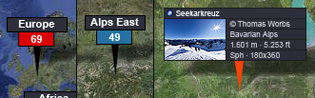
Click on the Continent marker (shown left with the red panorama counter) in order to zoom to the region. The region markers with the blue counters appear (see middle of the picture left). A click on this marker zooms further to the panorama marker icons. Move the mouse over the marker icon and a description box shows up (see right side of the picture left). Now click on that box and the panorama will open in a separate browser window.
Now you can move around in the panorama. Place the round mouse cursor about in the middle of the panoramic image and hold down the left mouse button. A four arrow cursor shape appears. While keeping the mouse button down move the mouse into the direction you want to move in the panorama. Release the mouse button to stop the motion.
The zooming function is assigned to the mouse wheel. Just turn it to zoom in and out.
Mountainpanoramas offers several control functions in its viewer. In order to access them move the mouse cursor into the right bottom area of the panoramic image. Now the Control Buttons fade in. The specific functions of the Control Buttons are explained in the next chapter.

 Zoom In button.
In case the zoom stops you have reached the maximum zoom factor.
 Zoom Out button.
In case the zoom stops you have reached the minimum zoom factor.
 Exit button.
Clicking this button exits the panorama and closes the panorama window.
 Label button.
When clicking this buttons all the labels are shown inclusive label text.
 Marker button.
When clicking this buttons only the arrows of the labels are shown without text.
Marker button.
When clicking this buttons only the arrows of the labels are shown without text.
Moving the mouse cursor over an arrow will fade in the text of the specific label.
 Label Off button.
Clicking on this button switches off all the labels, the arrows as well as the
label text.
 Compass button.
Clicking on this button shows the compass when it is not visible respectively
Compass button.
Clicking on this button shows the compass when it is not visible respectively
hides the compass when its visible.
 Autorotate button.
A click on this button toggles the autorotate function. When autorotate in on,
Autorotate button.
A click on this button toggles the autorotate function. When autorotate in on,
it stops,
when off, it starts.
 Fullscreen button.
A click on this button toggles between fullscreen and normal mode.
Fullscreen button.
A click on this button toggles between fullscreen and normal mode.
Please note that
the keyboard control is disabled in fullscreen mode.
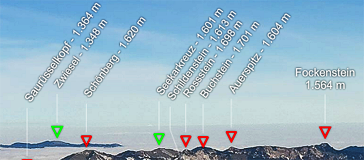 When you have switched on the labels (Control Button to switch on see above)
you might detect labels with green arrows. A green label means that at this
place there is another panorama. Click on the label and you will be transferred
to
this panorama. This function enables you to virtually hike through whole
mountain regions. At the moment the network of panoramas is not completely
connected through these links but by and by with growing number of panoramas
this will change. Try Guffertspitze
as a good starting point to experience Panoramic Hiking.
When you have switched on the labels (Control Button to switch on see above)
you might detect labels with green arrows. A green label means that at this
place there is another panorama. Click on the label and you will be transferred
to
this panorama. This function enables you to virtually hike through whole
mountain regions. At the moment the network of panoramas is not completely
connected through these links but by and by with growing number of panoramas
this will change. Try Guffertspitze
as a good starting point to experience Panoramic Hiking.
In order to determine the direction you are looking to, switch on the compass by clicking on the Compass control button on the bottom right corner of the panoramic image. The indicator in the middle of the compass also shows you the current horizon level.

The compass in Mountainpanoramas is not an indicator only. It has some built-in navigation functions. Clicking into the middle of the compass (into the horizon level indicator) levels the horizon exactly to the middle. Clicking on a direction on the compass rose moves you to that position within the panorama while levelling the horizon to the middle also.
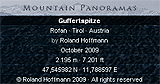 if you want to access the Info Box of the panorama, move the mouse cursor to
the
bottom left corner of the panoramic image.
if you want to access the Info Box of the panorama, move the mouse cursor to
the
bottom left corner of the panoramic image.
The Info Box contains the metadata of the panorama and the copyright information. This feature has been implemented for the full screen mode as in this mode the footer, normally containing all information about the panorama, is not visible.
When not in fullscreen mode you can also use the arrow keys of your keyboard to move within the panorama. 'LEFT' / 'RIGHT' / 'UP' / 'DOWN' keys are supported.
Zooming in and Out is also possible using the keyboard when not in fullscreen mode. 'SHIFT' or '+' zoom in, 'CTRL' or '-' zoom out.
Please be aware that in fullscreen mode all keyboard control is disabled. You have to use the mouse navigation features in this mode. This is not a bug in Mountainpanoramas, the Flash / Browser combination does generally not support keyboard control in fullscreen mode.